Templates
Let's assume you have created a template file.
Open a new file using the template file. You do this by looking at the assets tab, select the icon for "templates". The next graphic shows the aset box with a list of templates. I only have one template, called "my-page-template.dwt".
If you have trouble finding it, the "assets" tab is next to the "files" tab, usually on the lower right side of your screen. The "templates" icon is contained in the assets panel, on the lower left. It looks like s sheet of paper with a bent corner. You can see it hilighted in the image above.
So, we're in the right panel and we see the list of templates.
Right click on the template you want to use, and the "context menu" will come up.
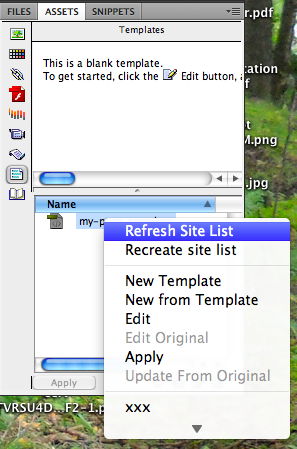
Choose "New from Template" and you will get a new page based on the template. We will repeate this same procedure for each of the pages we make in this project.
Select the "Green" template indicated in the book and create a new page.
Save the file you have just created as news.html.
If you have a Microsoft Word document you can copy the text and paste it into your web page..
Type control-A to select all and control-C to copy all the text in this file.
Then go back to Dreamweaver and paste the results into the page in the "content" area.
Formatting lists is pretty easy in Dreamweaver.
Let's remind ourselves of how lists work in html. A list starts with <ol> (ordered or numbered list) or with <ul> (unordered, or bullet list). Each list item starts with <li>. There are appropriate end tags at the end of each list item </li> and at the end of the list you need either </ul> or </ol> to match the tag at the start of the list.
A typical list will have html that looks like this:
<ul>
<li>One</li>
<li>Two </li>
<li>Three</li>
</ul>
This will create a list that looks like this:
To create a list in Dreamweaver, type a couple of paragraphs, then hilight them and select format->list. You can then choose the type of list. The paragraphs will immediately become a list. This is super easy.
Dreamweaver uses the <blockquote> html command to create indents. It's super easy. Just select some text, and select format->indent. To remove this, select format->outdent. That's all there is to it.
We know the basic form of an html table
<table>
<tr>
<td>contents</td>
</tr>
</table>
This is a table with one row and one cell.
You can type this by hand, adding <tr> for new rows, and <td> for new cells. You can format by setting the height and width options.
Dreamweaver can do some of the typing for you.
To create a table select "insert table". There are a bunch of options for your table which are all sort of self explanatory. how many rows, how many columns, cell padding, and so on.
